Select Version of EA Desktop:
To add media to a catalog session, open the session in edit mode. The default layout for the edit mode includes all five workspace panes. To modify the workspace layout, refer to Adjust workspace layout.
To add media, click Add from the Media panel.
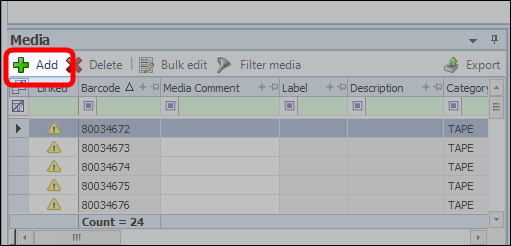
The Create Catalog Media window opens.
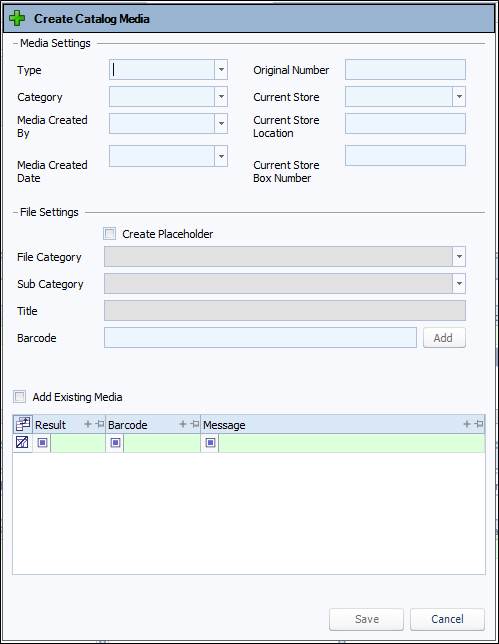
The Create Catalog Media Window lets you add many media sources creating a batch. The information you enter in the 2 sections of the window attach to the media.
Add media to the batch:
-
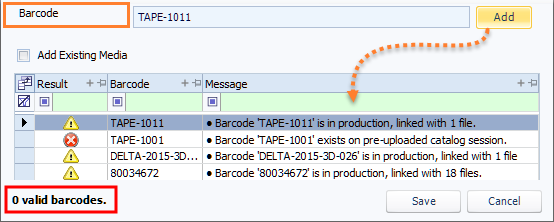
Using a barcode reader, scan the barcode to auto-populate the Barcode field.
Tip:Alternatively, type in the field to enter the barcode.
-
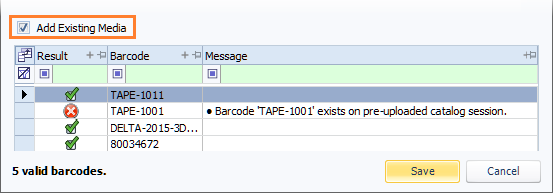
If the message column indicates that the media is in production, you can override the validation restriction by selecting Add Existing Media. For existing media, the media will add to the catalog session without updating the Media Settings.
Adding Media Details:
Metadata that could be common to the media included in the batch is split into two sections:
-
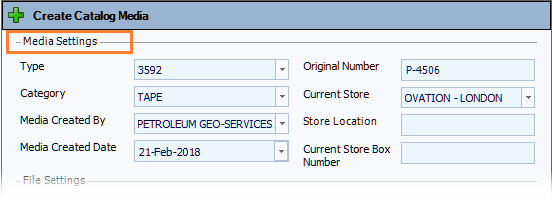
Media Settings: Use the fields in this section to enter information such as the Type, Category, and who the media was created by.
-
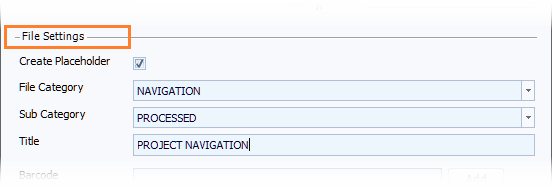
File Settings: Used for creating a placeholder for a file which is useful for a large dataset such as field data or gathers.
Select Create Placeholder to open the file metadata fields and enter the associated detail.
-
Click Save to add the valid barcodes, and the window closes.
To add media to a catalog session, open the session in edit mode. The default layout for the edit mode includes all five workspace panes. To modify the workspace layout, refer to Adjust workspace layout.
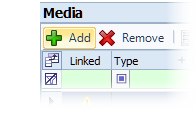
To add media, click Add from the Media panel.
The Create Catalog Media window opens.
The Create Media Window lets you add many media sources creating a batch. The information you enter in the 2 sections of the window attach to the media.
Add media to the batch:
-
Using a barcode reader, scan the barcode to auto-populate the Barcode field.
Tip:Alternatively, type in the field to enter the barcode.
-
If the message column indicates that the media is in production, you can override the validation restriction by selecting Add Existing Media. For existing media, the media will add to the catalog session without updating the Media Settings.
Adding Media Details:
Metadata that could be common to the media included in the batch is split into two sections:
-
Media Settings: Use the fields in this section to enter information such as the Type, Category, and who the media was created by.
-
File Settings: Used for creating a placeholder for a file which is useful for a large dataset such as field data or gathers.
Select Create Placeholder to open the file metadata fields and enter the associated detail.
-
Click Save to add the valid barcodes, and the window closes.